How to help aging parents with their iPhone
Stop being your parent's personal IT department.
You love your parent. You don't love being called every time a pop-up appears. Mimi Care looks at a screenshot of any confusing screen on their iPhone and explains what it's asking, in plain language.


We’re welcoming families a few at a time, so there may be a short wait after you sign up.

What it handles
The pop-ups that ruin your Sundays.
You know the ones. Mimi Care can take these off your call list.
Pop-ups and prompts.
"Accept cookies?" "Update now?" "iCloud storage is full." "Your password needs resetting." Mimi Care explains what each one is asking.
Email and messages.
"How do I attach a photo?" "Where did that message go?" "How do I reply?" A screenshot, a question, an answer.
Suspicious screens.
Fake "Microsoft Support" pop-ups. Phishing sign-in pages. Fake virus warnings. Mimi Care points out the warning signs and suggests not calling the number on the screen.
How it works
Screenshot, hand it over, hear it.
Your parent takes a screenshot, then picks it in Mimi Care. That's it.
- 1
Take a screenshot.
On an iPhone, press the side button and volume up at the same time (on an older iPhone with a round Home button, the side or top button and Home). On an Android phone, press the power button and volume down at the same time.
- 2
Pick it in Mimi Care.
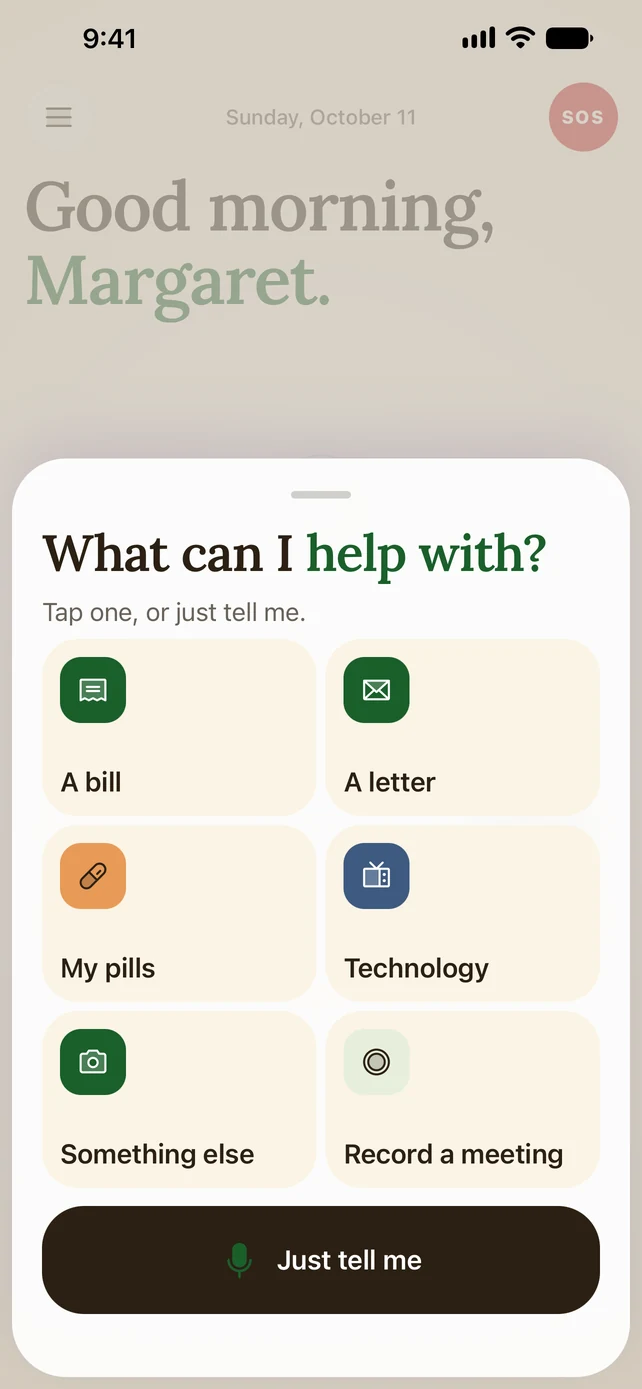
In Mimi Care, they tap Help me, then Technology (or Scam check), choose "Use a photo I have" and pick the screenshot from their photos.
- 3
Hear what's going on.
A plain explanation in the Mimi Care voice they picked, the same one that reads their bills and mail. Follow-up questions out loud, no typing.
Why it matters
The interruptions are the hard part.
For a lot of older adults, the hard part isn't the phone or the apps. It's the interruptions: the pop-ups, prompts and warnings everyone else dismisses on autopilot.
Mimi Care closes that gap. Sometimes you really do need to be there. But many "what is this?" questions get answered without a call, so your calls home aren't taken up by troubleshooting.
And because confusing screens are where scammers strike, Mimi Care points out a fake "call Microsoft" pop-up, a phishing page or a fake bank alert at the moment your parent is most unsure.
Common questions.
Will Mimi Care see my parent's passwords?
Yes, if one is showing: Mimi Care sees whatever is in the screenshot, so it's best to take it once the password is hidden. Mimi Care never asks for passwords and never tells them to give one out. The screenshot is sent over an encrypted connection and stored encrypted. Mimi Care's AI provider, Anthropic, reads it to answer. We don't use it to train AI, and Anthropic's terms don't allow it to either. A copy of each help is kept so they can look back at it, and it's deleted after 180 days unless they choose to keep it.
What if they can't remember how to take a screenshot?
On an iPhone, press the side button and volume up at the same time (on an older iPhone with a round Home button, the side or top button and Home). On an Android phone, press the power button and volume down at the same time. If they'd rather not, they can talk the problem through with Mimi Care instead: tap the circle on the home screen and say what's wrong.
Can I control my parent's iPhone remotely?
No. Mimi Care doesn't do remote control. The help is an explanation of what's on the screen. For things you have to fix yourself (Apple ID recovery, account settings), Mimi Care suggests checking with family.
Does this work on Android?
Yes. Mimi Care is on the App Store for iPhone and on Google Play for Android.
What about a Mac or an iPad?
Mimi Care runs on iPhone and Android phones. For a computer or tablet, they can take a picture of its screen with the phone, under Technology.
Help them stay independent.
Set it up today, on your phone or right here.
Create your accountWe’re welcoming families a few at a time, so there may be a short wait after you sign up.